
User Information: Instrument Protection Plan
Table of Contents
What is the CutTime Instrument Protection Plan?
How Do Guardians Opt Into a Protection Plan?
- Step 1: An Instrument is Assigned
- Step 2: Guardians See the Assignment/Sign the Agreement
- Step 3: Opting into an Instrument Protection Plan
What is the CutTime Instrument Protection Plan?
The CutTime Instrument Protection Plan provides affordable protection for school-owned and school-issued instruments, giving families and guardians greater peace of mind when accidental damage occurs. Fully integrated with CutTime, the plan connects instrument assignments, inventory, repairs, and claims in one easy-to-manage platform.
How Do Guardians Opt Into a Protection Plan?
Step 1: An Instrument is Assigned
Users with administrative rights in an account can assign/check out an instrument to a member/student, and (optionally) send a rental agreement waiver for the guardian to sign.
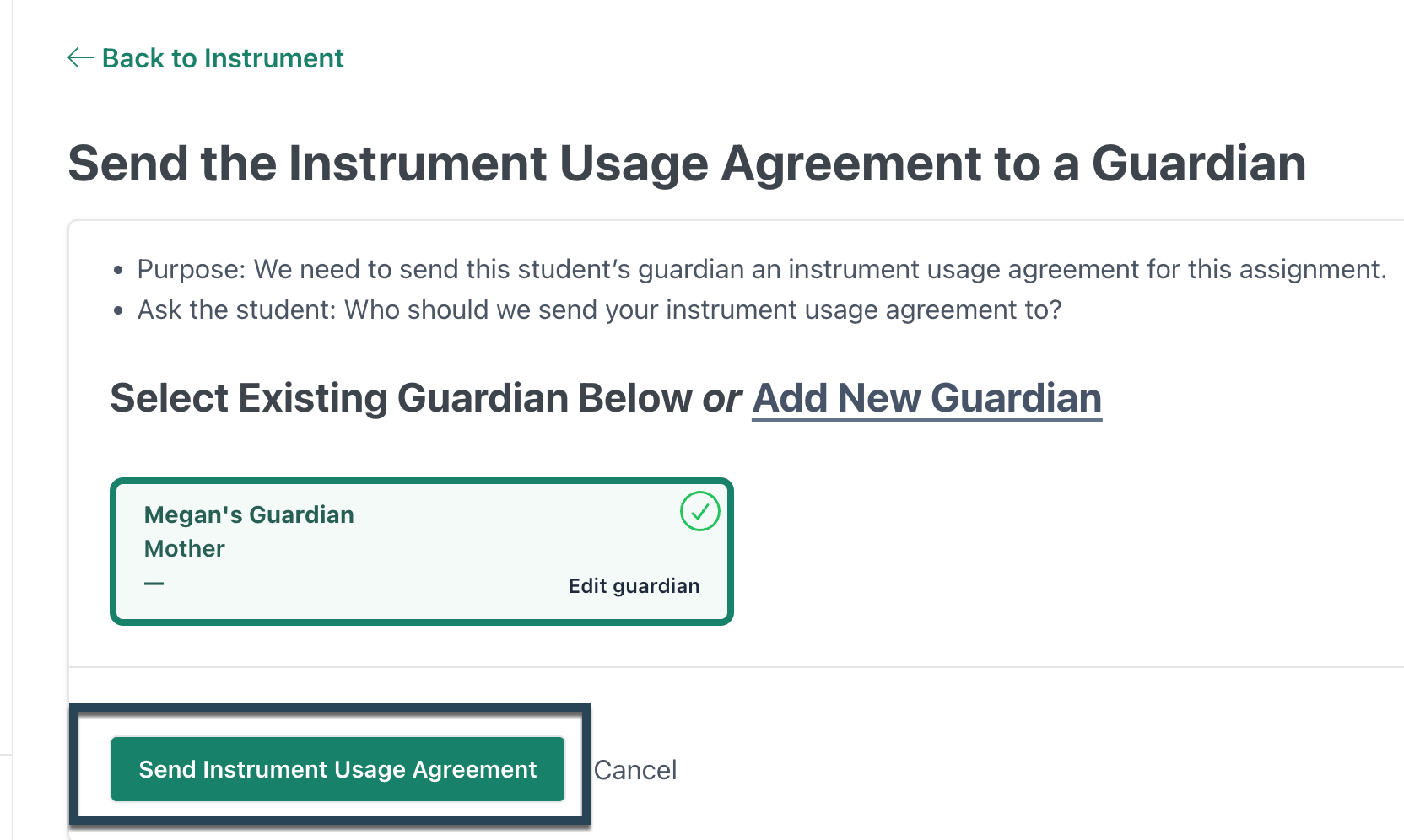
Step 2: Guardians See the Assignment/Sign the Agreement
There are two ways that a Guardian can opt into the Instrument Protection Plan:
1) They log into their Magic Link and see that there is an item that can be covered from their Dashboard or Assignments page.
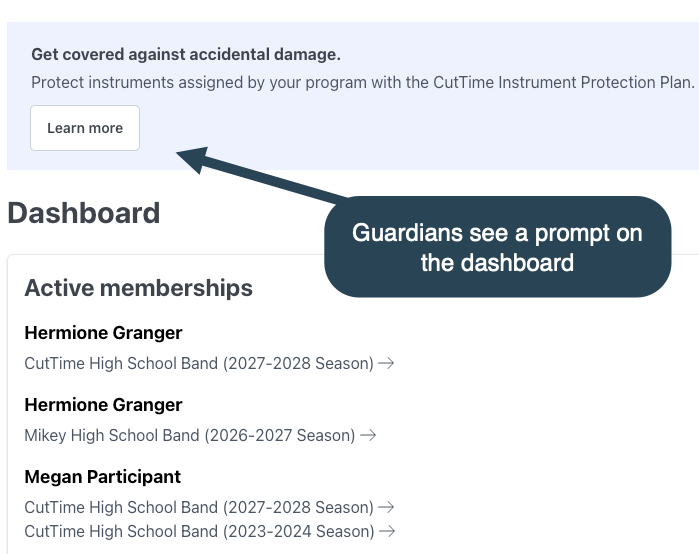
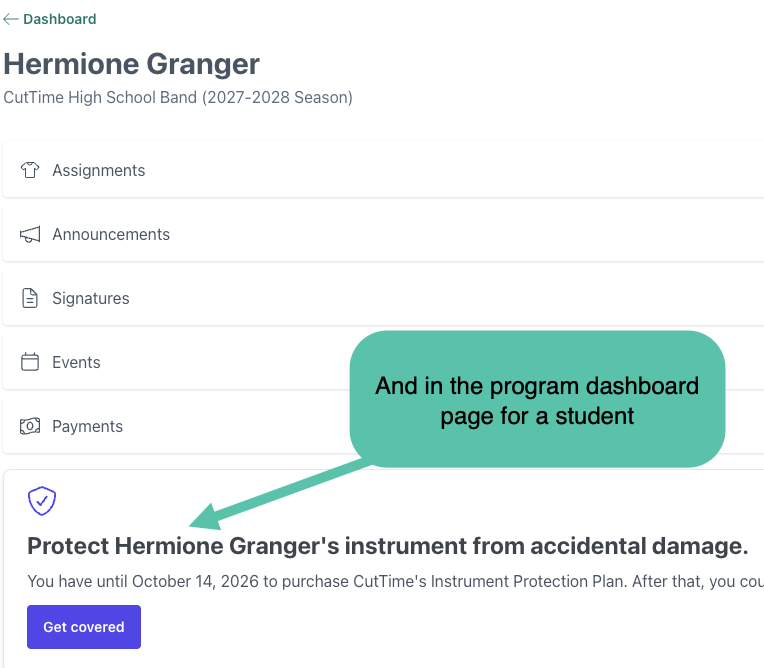
2) They see the option after they sign a Rental Agreement Waiver.
If you have sent a rental agreement once the instrument was assigned, then the Guardian will receive this notice in text or email form with a link to sign the waiver.
On that invitation to sign page, Guardians will see the details about the instrument assigned, along with the terms of the rental agreement. They will also see the approximate replacement value of the item.
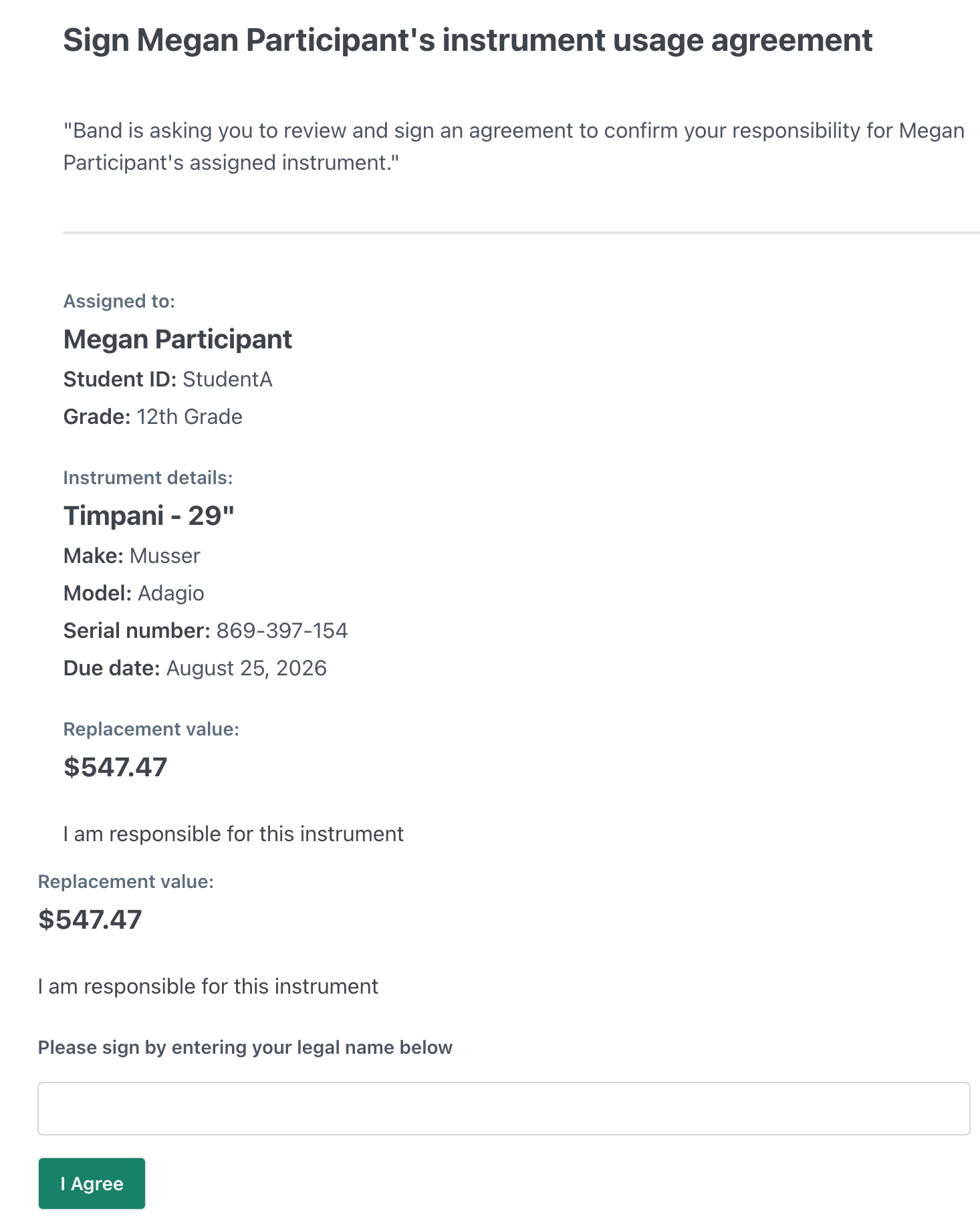
Once they sign the rental agreement waiver, they will also see that they have the option to purchase the CutTime Instrument Protection Plan.
The Instrument Protection Plan is NOT required for the rental agreement and is fully optional for Guardians. If they don't click through on the Instrument Protection Plan, then they can just close out of this page.
If there is more than one item assigned to a member, or more than one member with an instrument assigned, the Guardian will see all of the available instruments they can opt into the plan for.
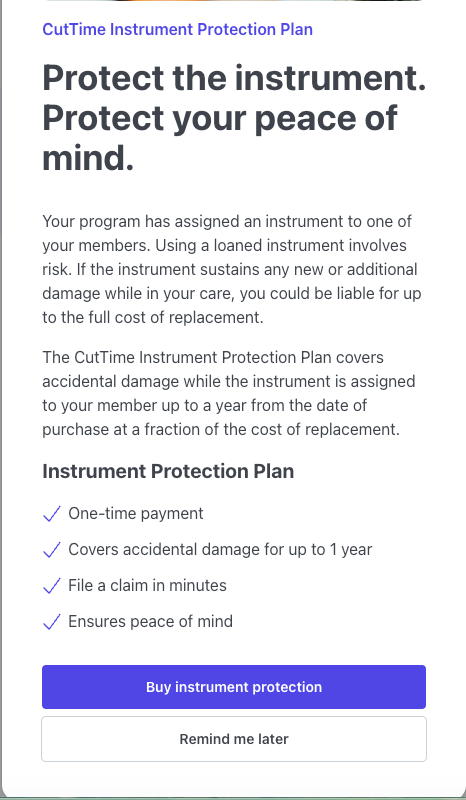
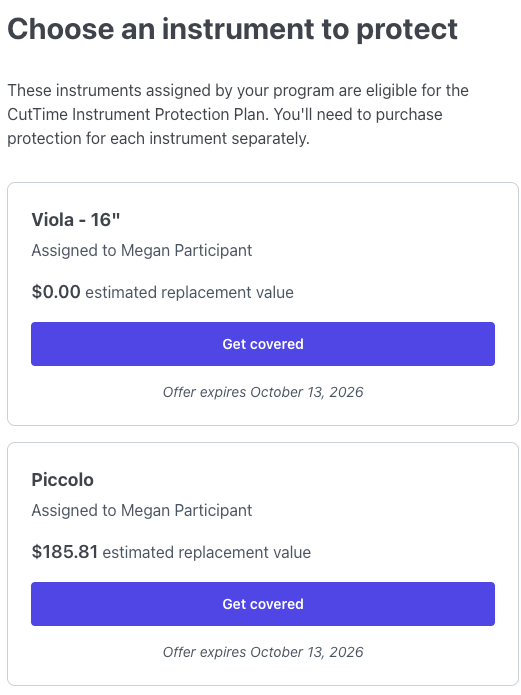
This plan pricing estimate is determined automatically in the system based on the replacement value tier of the instrument assigned to their member.
Good news! If a Guardian does decide later to opt into the Instrument Protection Plan, they will have a 14-day window to log into their Magic Link's Dashboard Page and click through to signup.
Step 3: Opting into an Instrument Protection Plan
An overview of what the plan entails and what the plan total will come to will be listed. The Guardian will click "Yes, protect my instrument" to continue to the next page, where they can fill out their information and sign up for the plan.
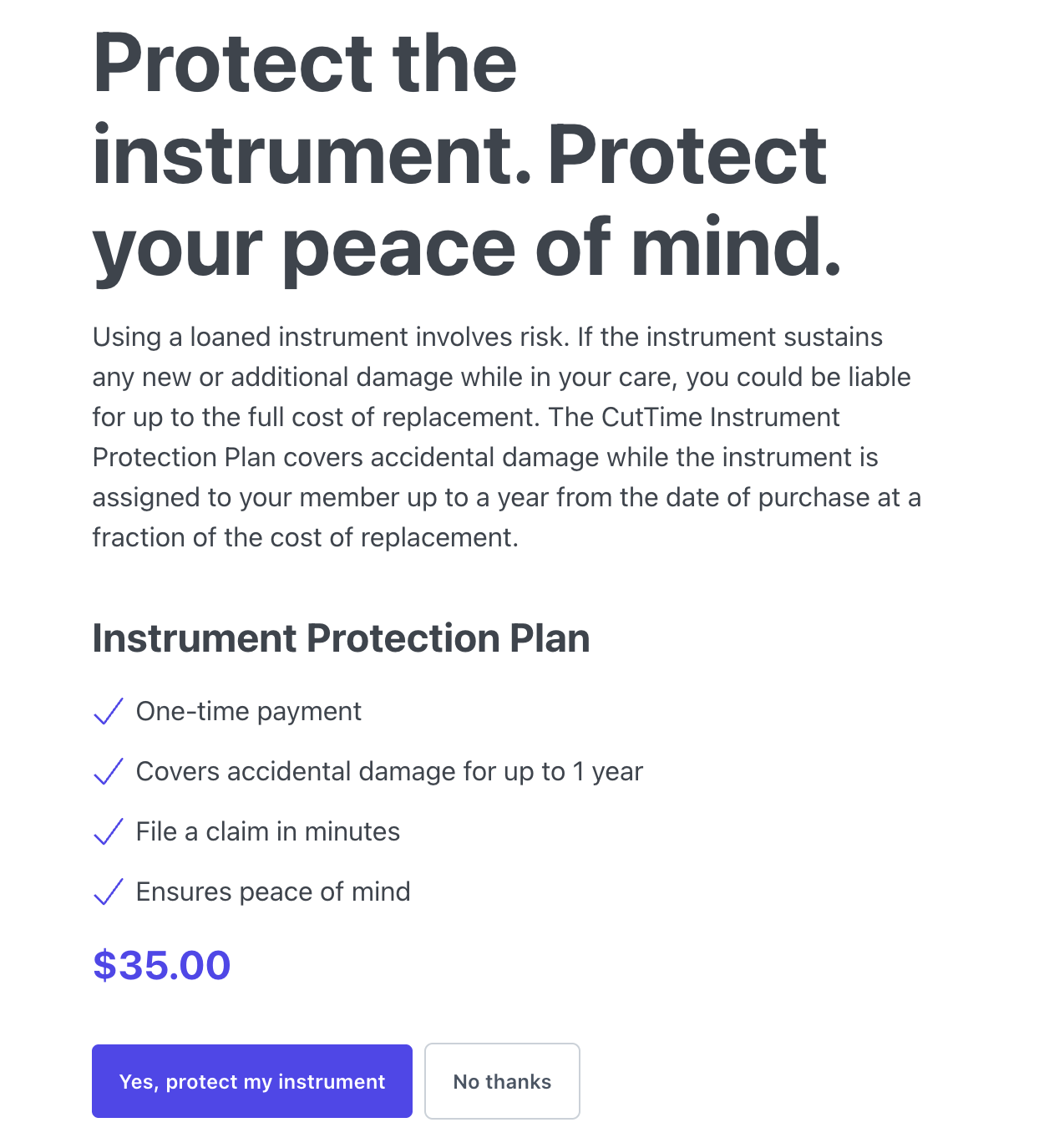
To learn more about the steps involved in signing up from a Guardian's perspective, read here.
Filing a Claim
Guardians can file a claim as needed within their Magic Links. They will need to log in and click through on the Member's Program to find the Assignments Page. Once they are on this page, they can find the instrument listed that is covered by their plan, click "file a claim" and follow the prompts to file their claim.
To learn more about the steps involved in the claims process from a Guardian's perspective, read here.
FAQ
For additional information and FAQ on the CutTime Instrument Protection Plan, please read here.
What Can I See as a User?
Find a Policy
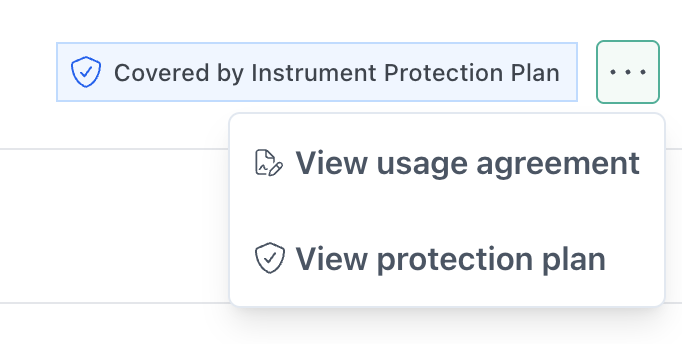
The User can check on which items have a Protection Policy by clicking through on the Item's page. Under the Assignments Section, there will be a blue indicator box that says "Covered by Instrument Protection Plan."
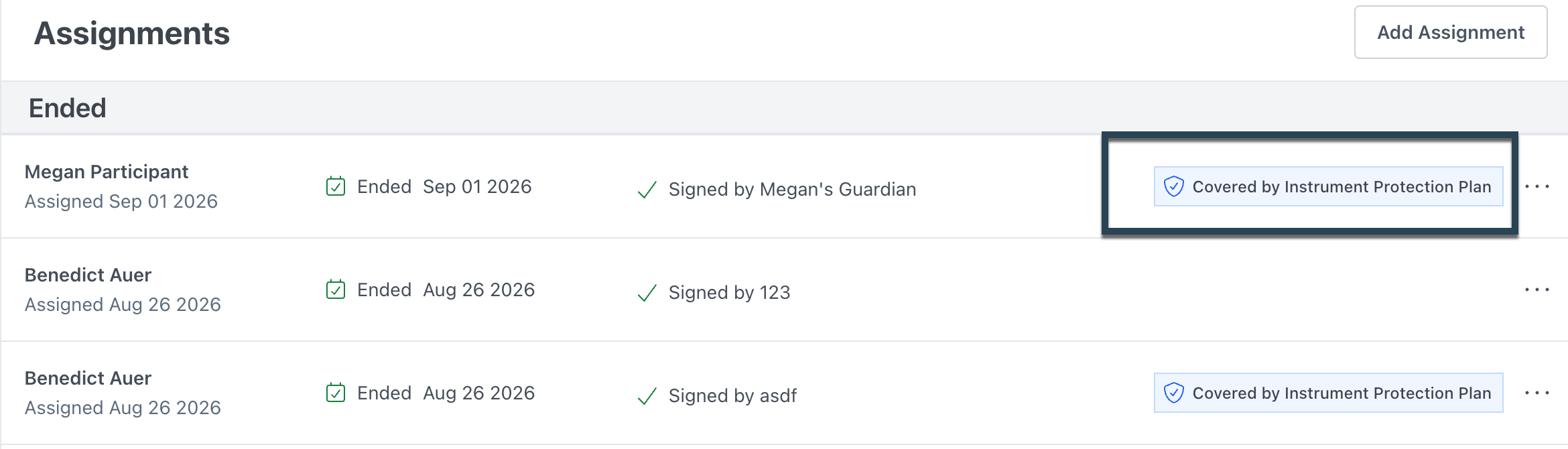
PLEASE NOTE! This indicator will appear within an hour of the purchase of the Instrument Protection Plan. If the Guardian just made the purchase and you aren't seeing it populate here, give it some time to reflect on your end.
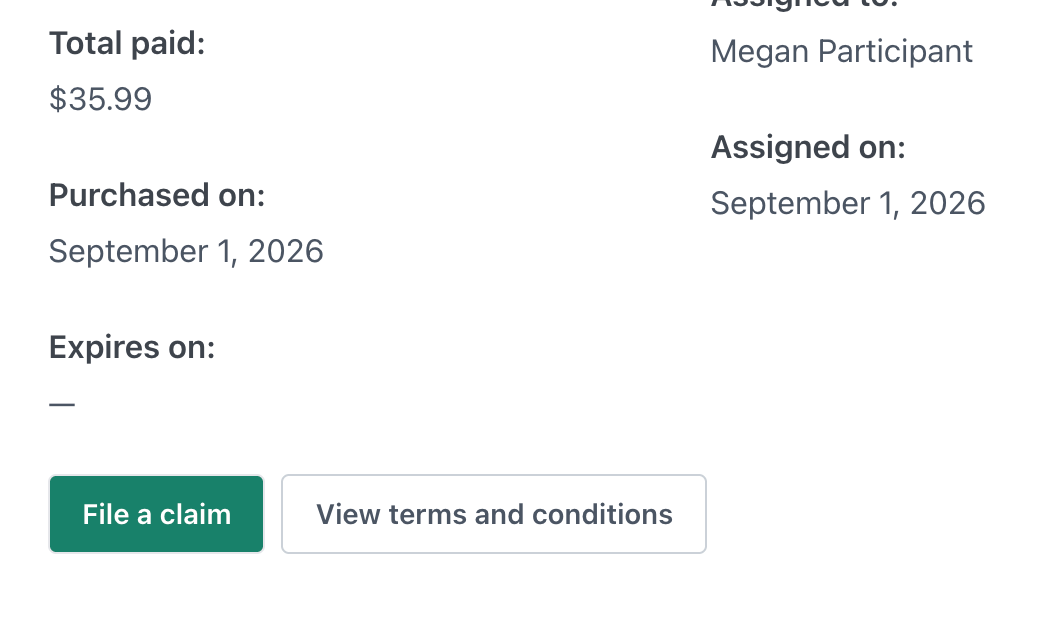
To view the plan as well as the terms and conditions, click on the 3 dots, then "View Protection Plan" and then the "View Terms and Conditions" button at the bottom.
Can I File a Claim for an Item?
Yes you can!
A plan policy is good up to 365 days. This means that you can also file a claim for an item even after it has been returned to your inventory, as long as the policy is still technically active.
For example: A policy was purchased in June, but the item was turned into the program by the end of December. You, as a User, can still file a claim for this item up until the next June (as long as the claim is filed within 45 days of an incident)
1) Go to the Item's Page in the Instruments Page.
Under the Assignments Section, there will be a blue indicator box that says "Covered by Instrument Protection Plan."
2) Click on the 3 dots, then "View Protection Plan."
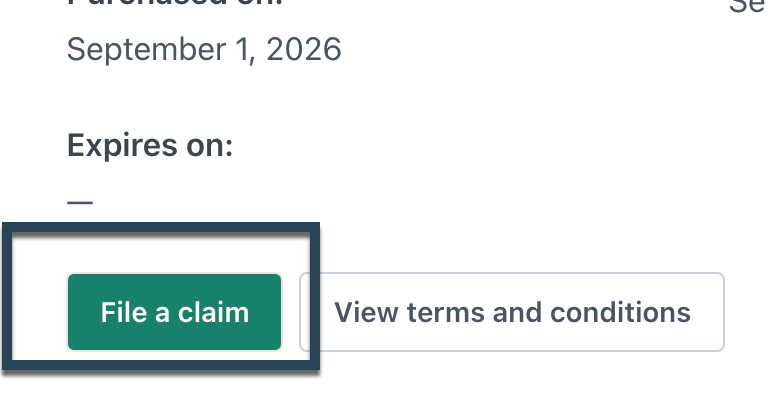
3) Click the "File a Claim" button to be taken to the Safeware Partner Claims Portal Page.
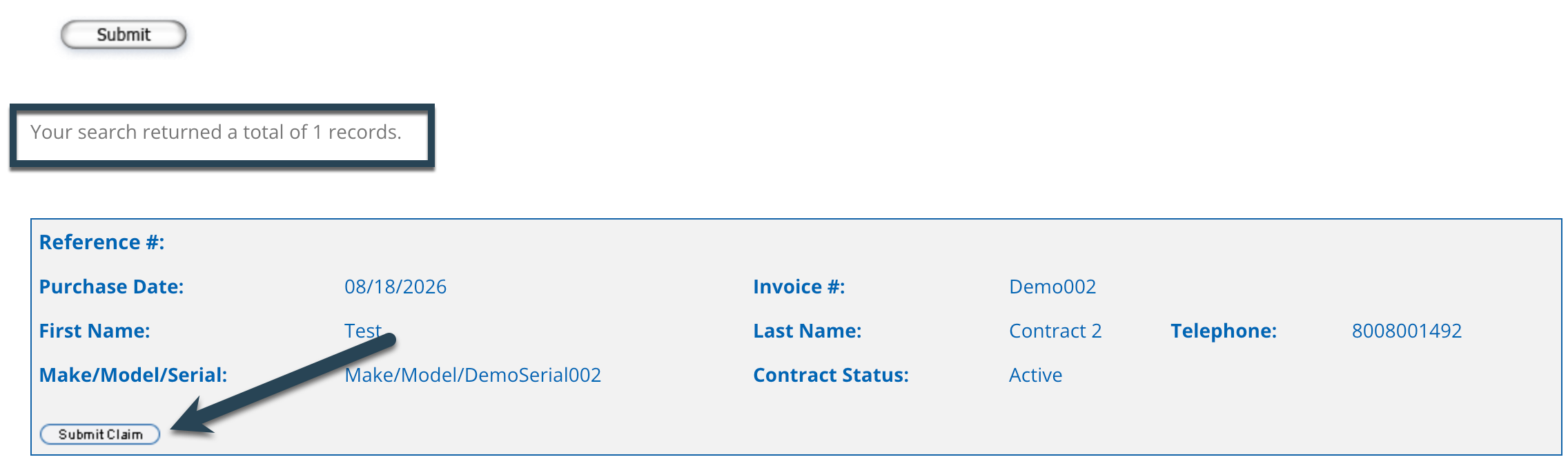
4) Provide the Serial Number, Plan Policy Number, or CutTime Plan ID for this protection plan and click "Submit."
It might take up to 90 seconds to lookup your item's policy record, but once it does, click the "Submit Claim" button.

5) Follow the prompts on Safeware's File a Claim Page.
- A) In the Customer Information Section, enter your name, your address, email and phone number.
- B) Select Email as the notification type.
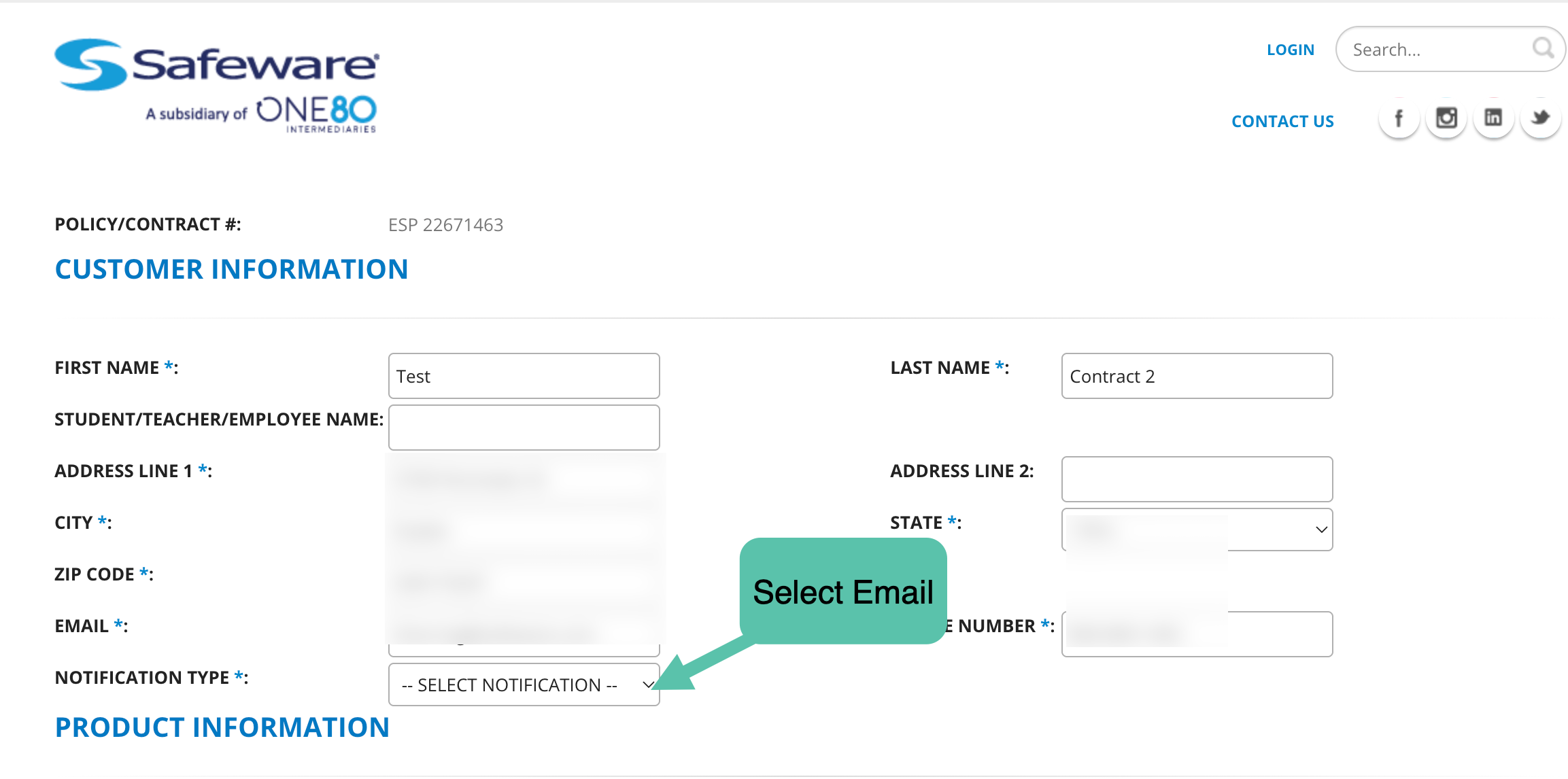
C) In the Product Information Section, review the make and model number for the item.
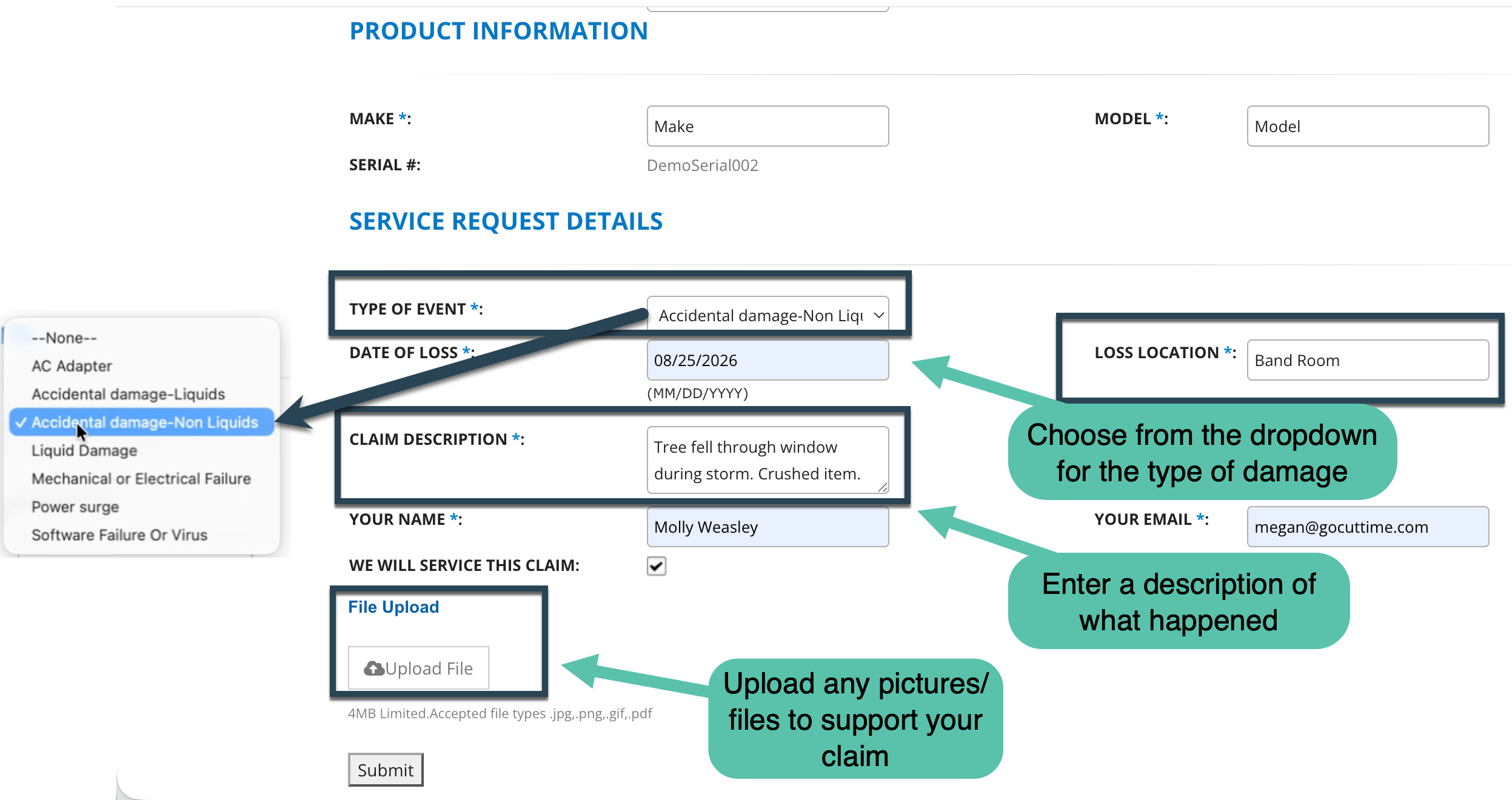
D) In the Service Request Details, use the dropdown menu to select the Type of Event. Enter the date of the Event, and the Location.
E) In the Claim Description box, write what happened to the item.
F) Enter your name and email again and upload any files/photos that you need to include on your claim.
G) Click "Submit."
6) Once your claim is filed, you will be taken to final confirmation page and an email will be sent.
Save the Claim Number included on that email information so you have it for your records.
7) Safeware will review your claim. If they need additional information, they will send a follow up email.
If your claim is denied, Safeware will notify you, as well as the reason for the denial.
If your claim is accepted, Safeware will issue a reimbursement for repair or authorize a replacement of this item.
Next Steps Once the Claim is Approved
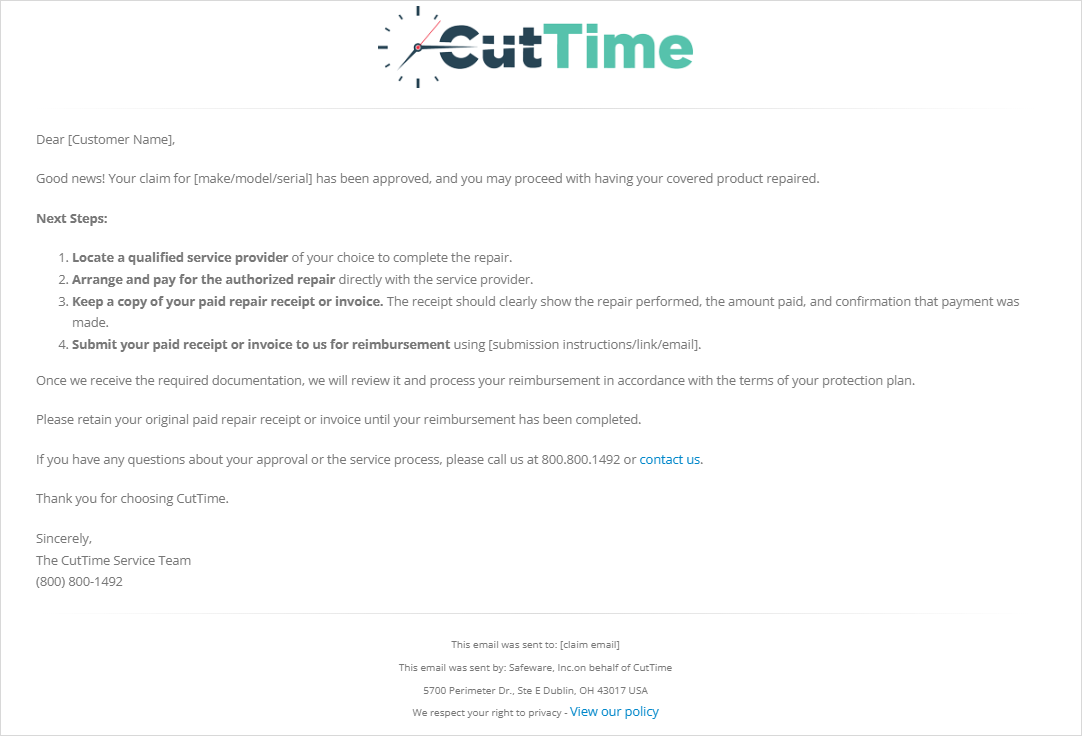
An automated email from Safeware will indicate if your claim was approved and include the next steps needed in the process.
Approval: Step 1
For the Approval Process, the first email will look something like this:
- The person who filed the claim will have to locate a local service provider to fix the instrument.
- Arrange and pay for the authorized repair.
- Keep a copy of the receipt/invoice to give to Safeware for reimbursement.
- And then submit it to Safeware (and a link with instructions on how to do that will be included).
Approval: Step 2
Two different emails will be sent in the second step in the process depending on what is submitted to the Claims Team.
1) If BOTH the Repair Documentation and the Receipt/Invoice were submitted:
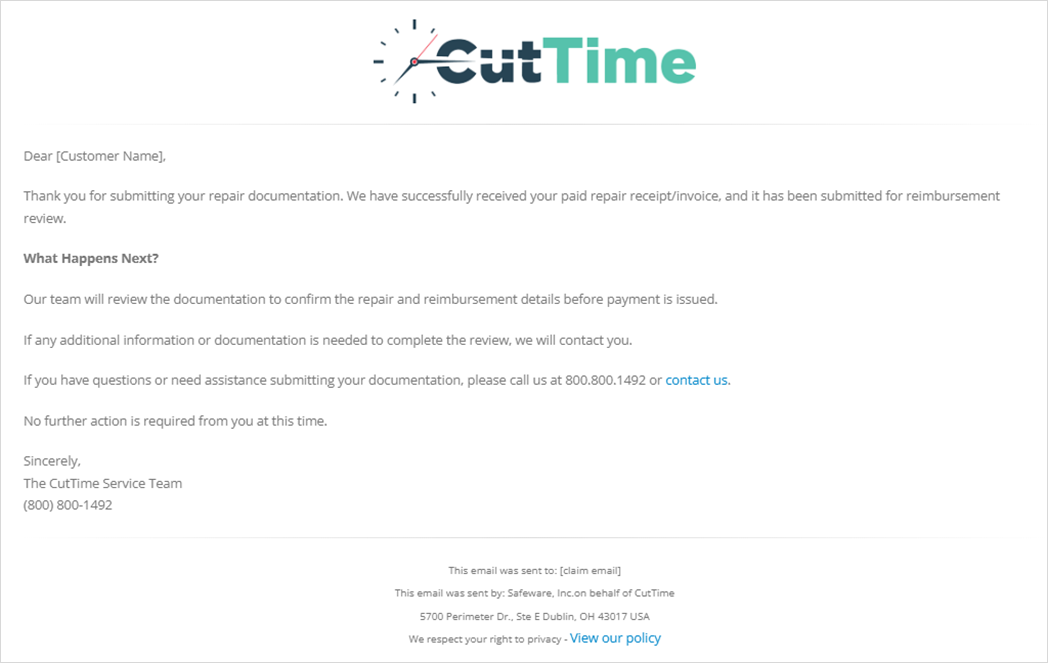
2) If ONLY the Repair Documentation was submitted, but no Receipt/Invoice:
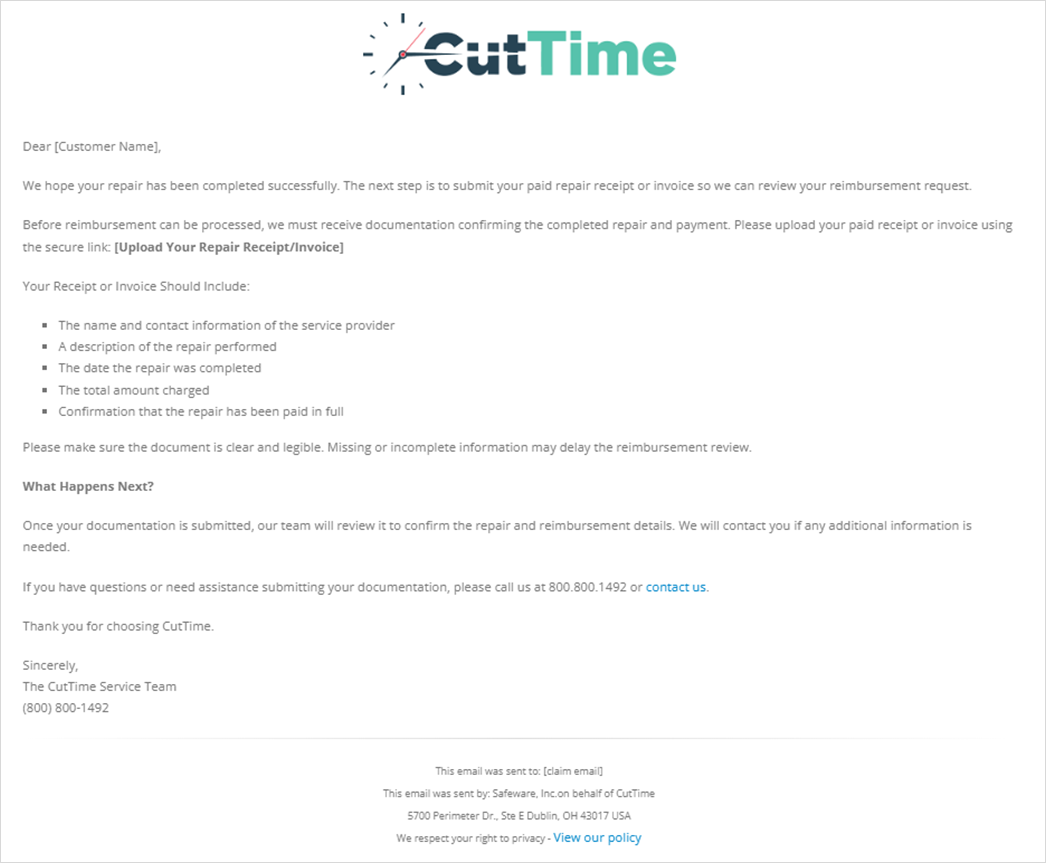
Either way, the person who submitted the claim will be informed that the Claims Team at Safeware will then need to review what was submitted before issuing a reimbursement payment.
Approval: Step 3
If the person who is receiving the reimbursement chose to receive the money through EFT (electronic funds transfer), they will get an email with more info on that process:
